Setting up Ubuntu with VirtualBox
VirtualBox is a free and open-source virtualization software that allows you to run multiple operating systems on your computer. Think of it as a platform that lets you run an operating system on a different operating system. That’s exactly how we are going to use it.
For this course, as much as we’d spend our time learning to code, it is also just as important we also familiarize ourselves with environments and operating systems we use to write out code. Since we are going to be using computers in UCL Cluster Rooms, which are restricted-use for security reasons, we are going to use VirtualBox to run Ubuntu on your computer. This will allow you to have a consistent environment to work in, and also allow you to have a separate environment for your code, which is not affected by any changes you make to your computer. Which also means that our setup for working on this course involves a couple of steps than just switching on a machine.
Using VirtualBox
Section titled “Using VirtualBox”Initial Setup (first time only)
Section titled “Initial Setup (first time only)”I have already setup the Ubuntu ISO for you, which you can find under [important links][/] on the module info page. This installation already includes all the necessary tools and dependencies for this course.
Loading the image
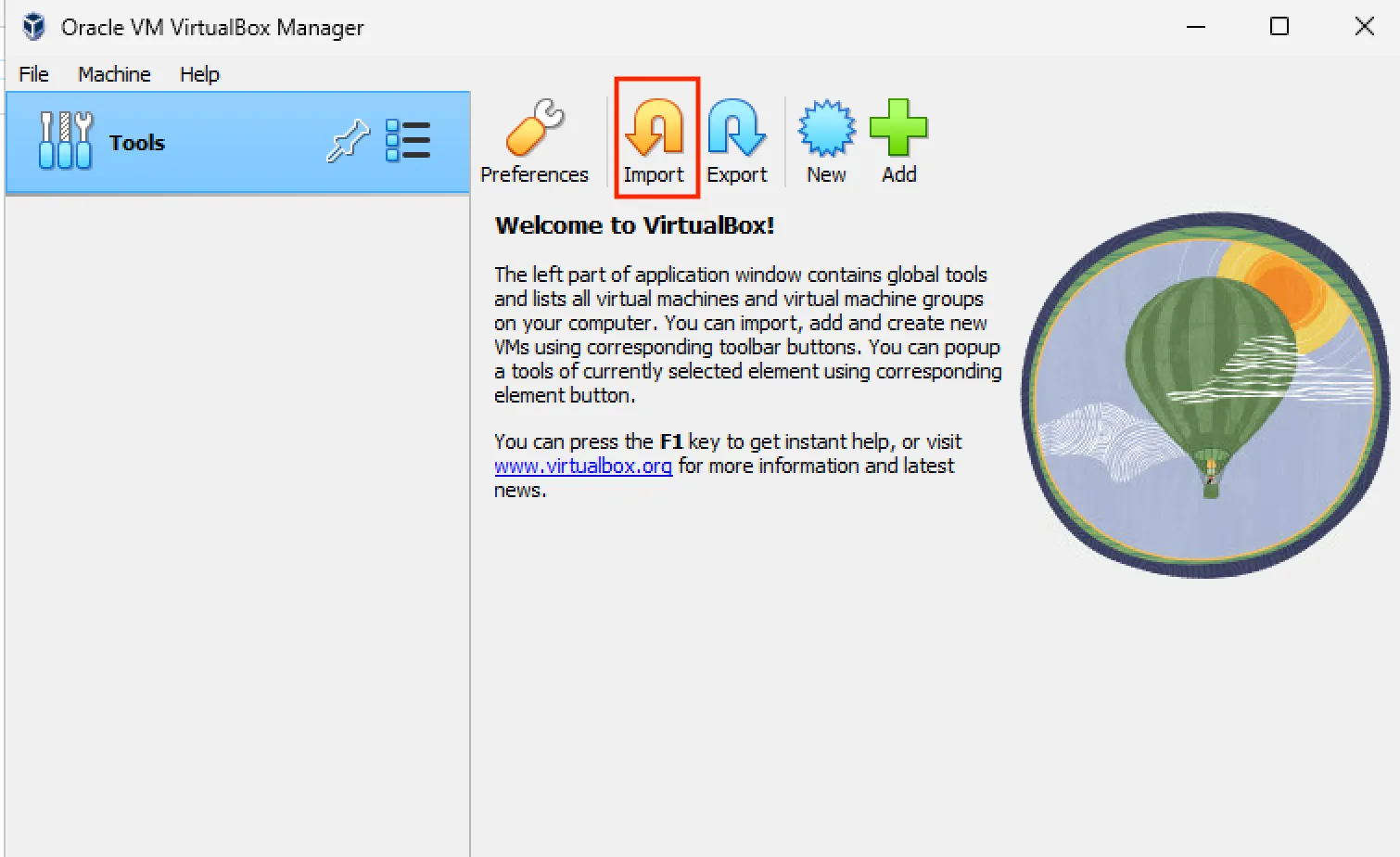
Section titled “Loading the image”Once you have downloaded the ISO, you can load it into VirtualBox. To do this, click on the Import button in the top left corner of the VirtualBox window. This will open a new window where you can configure your VM.
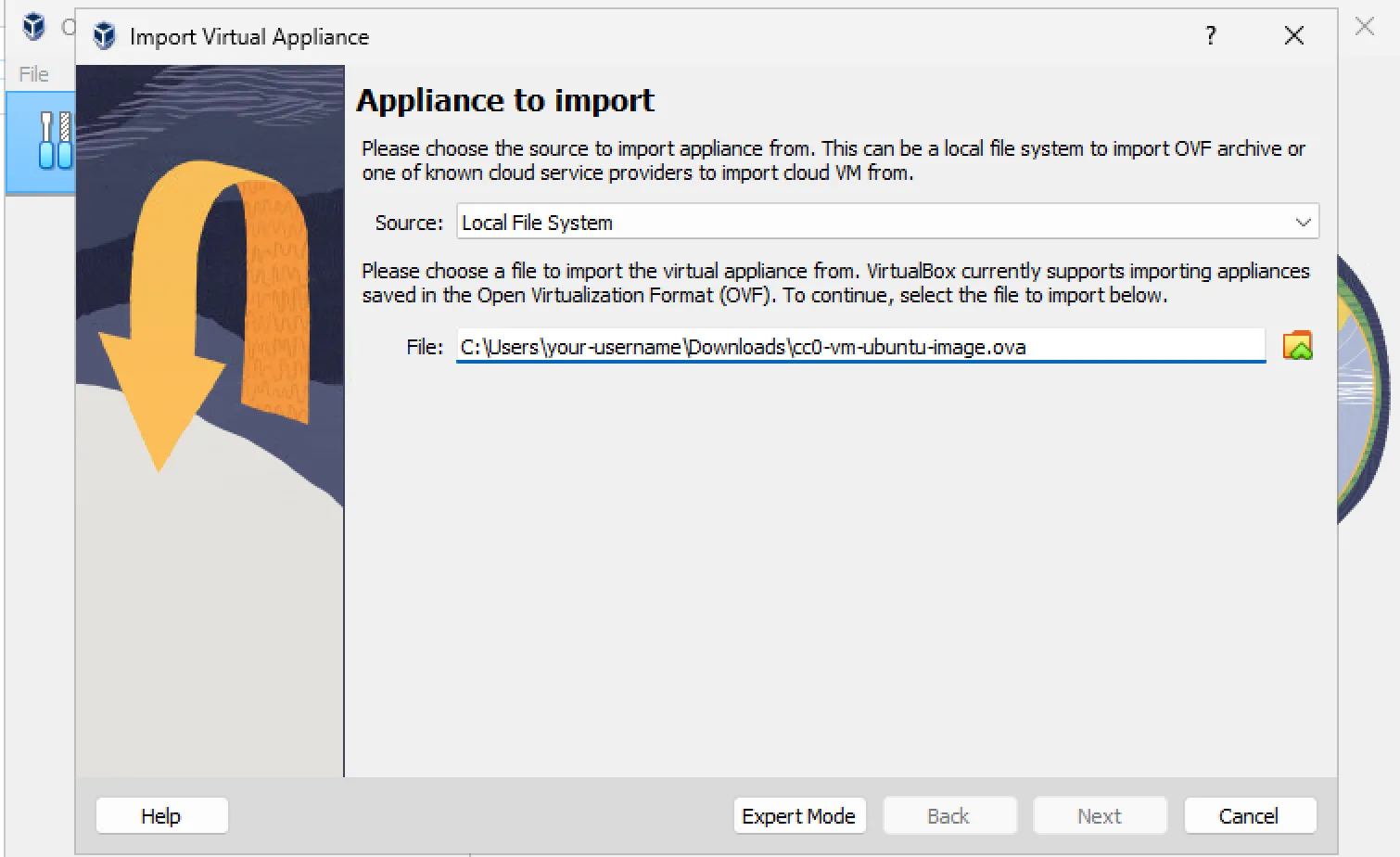
On the import panel, look for the downloaded .ova file.
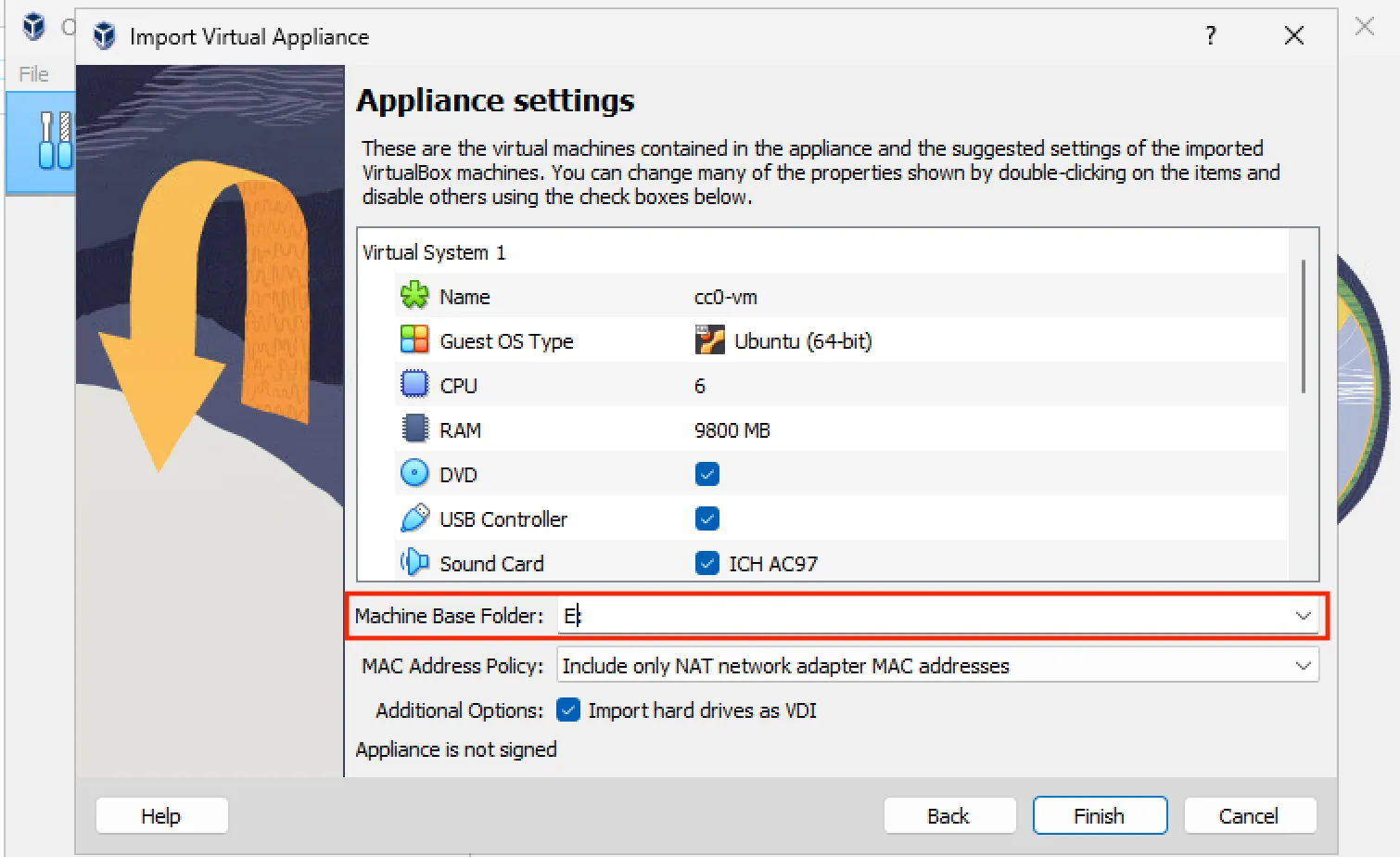
Now for the most important part, we have to change the Machine Base Folder to your USB drives. Plug in your USB stick if you haven’t already done so. (In most cases, it should be mounted on to E: drive, but double-check this. You can open My Computer and verify the drive letter)